
Try a broader term or contact support for help.
SECTION 01Getting started
Installation, activation, and your recommended first setup.
Install the application
- Download the installer that matches your operating system and computer.
- Save the installer somewhere you can locate again, then open it and follow the operating-system prompts.
- Launch Fiscal Station HQ after installation completes.
- Enter the Lemon Squeezy license key supplied with your order when prompted.
Internet access is required for initial activation and may be required for periodic license validation. The core financial-planning experience is designed to remain local-first.
Recommended first setup
- Open Settings and review your preferences.
- Create your primary checking, savings, credit-card, loan, and asset accounts.
- Add recurring bills, subscriptions, and expected paychecks.
- Enter transactions manually or import supported CSV activity.
- Build the current month’s budget and your savings or debt priorities.
- Create a manual backup from Settings after completing the initial setup.
SECTION 02Command Center
Understand the connected overview of your current position and upcoming plan.
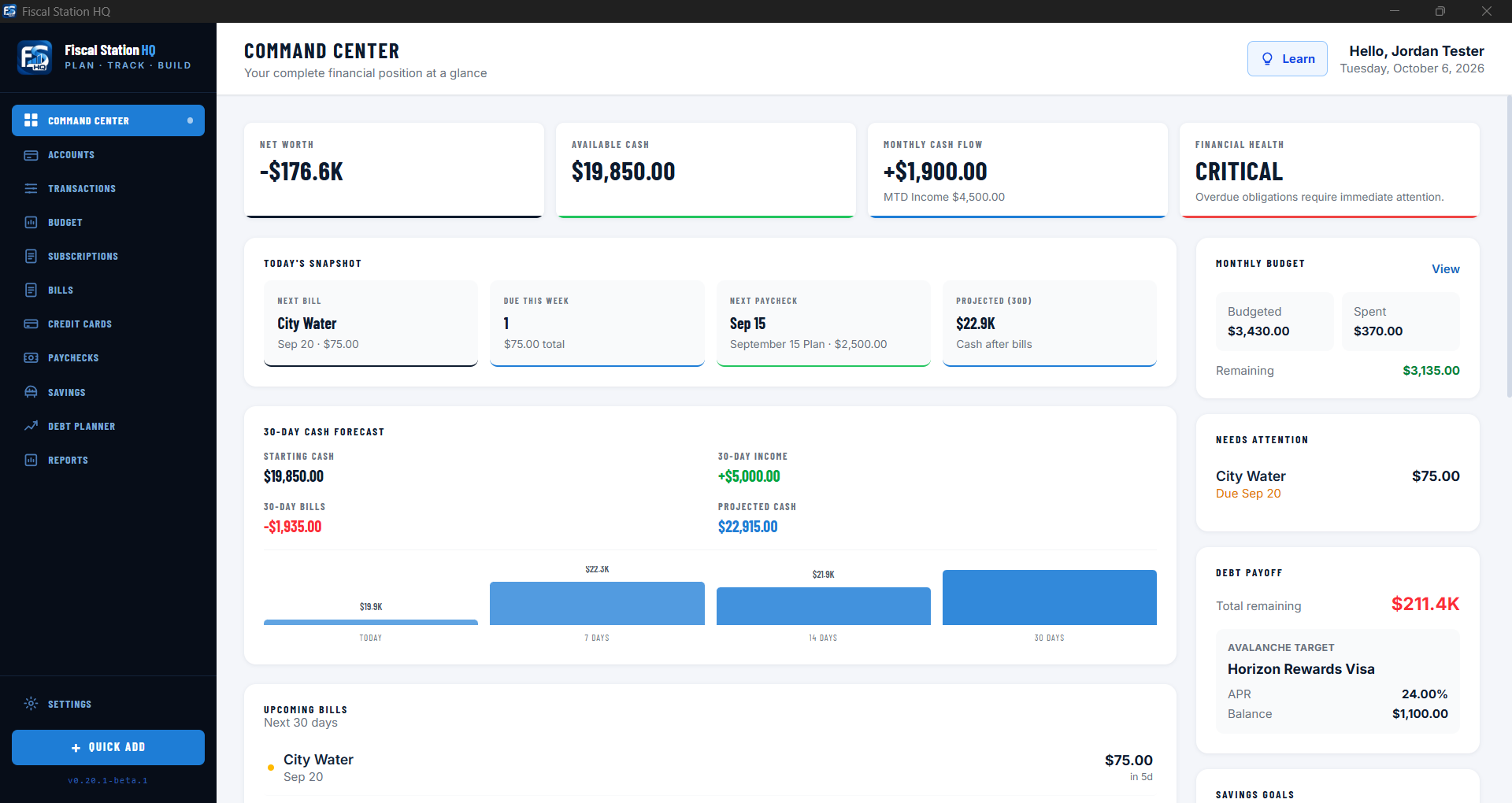
The Command Center summarizes information entered throughout Fiscal Station HQ. Use it as an overview—not as a replacement for reviewing the detailed records behind each figure.
What to review
- Accounts and net position: balances entered across cash, savings, assets, credit, and debt.
- Cash flow and forecast: expected income and obligations over the displayed period.
- Upcoming items: paychecks, bills, subscriptions, and other time-sensitive activity.
- Budget, savings, and debt: progress based on the information recorded in their respective workspaces.
Select supported summary cards to move directly to the corresponding detailed workspace.
SECTION 03Accounts
Build the account structure behind your financial picture.
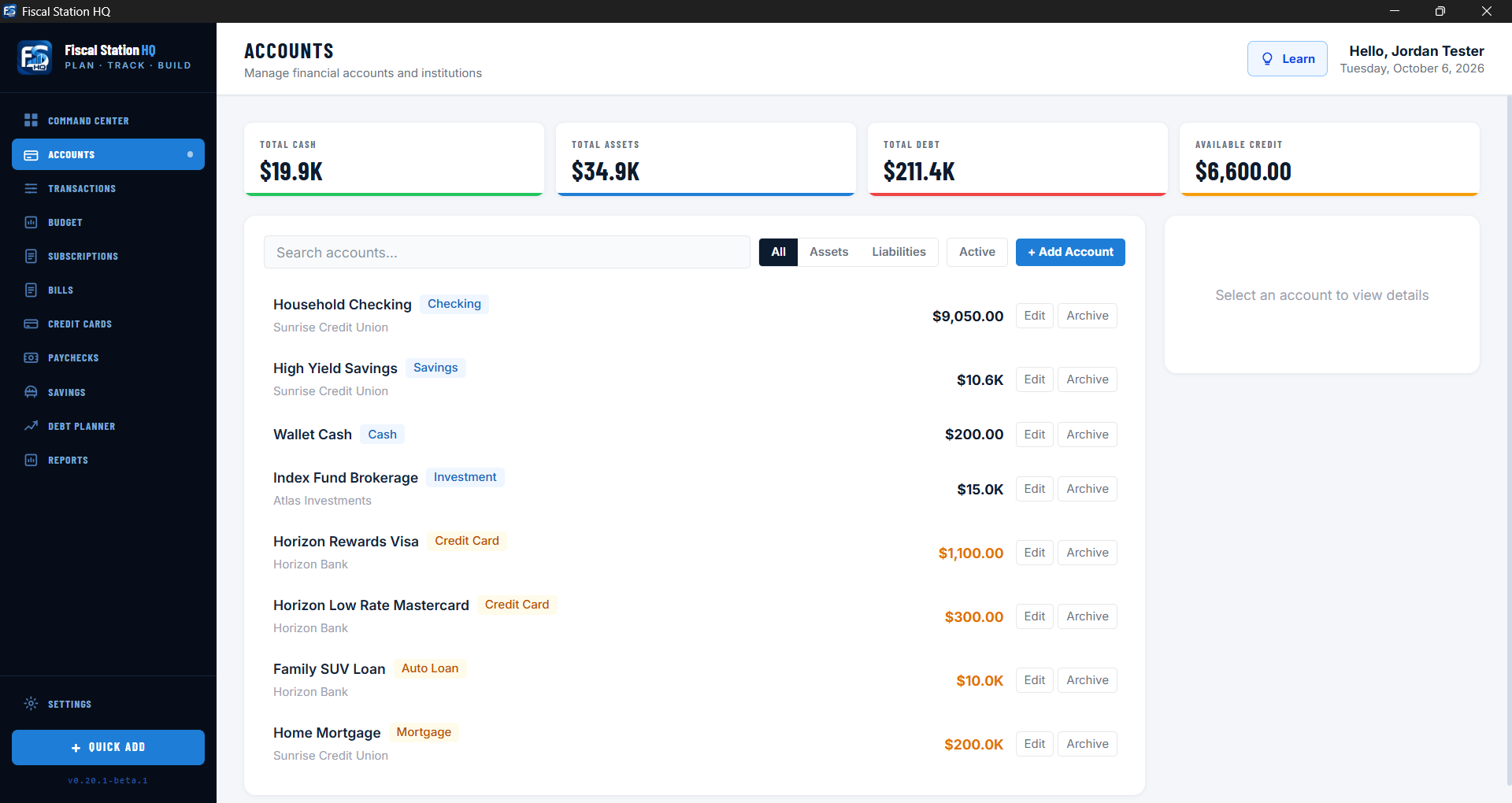
Create useful account records
Add accounts that help explain your current position, such as checking, savings, cash, credit cards, installment loans, and tracked assets. Use clear names that you will recognize elsewhere in the application.
- Enter the most current reliable balance available.
- Choose the account type that accurately describes the record.
- Update manually maintained balances whenever new activity makes them stale.
- Avoid including full account numbers or unnecessary sensitive notes.
SECTION 04Transactions, imports, and rules
Record activity, organize monthly history, and reduce repetitive cleanup.
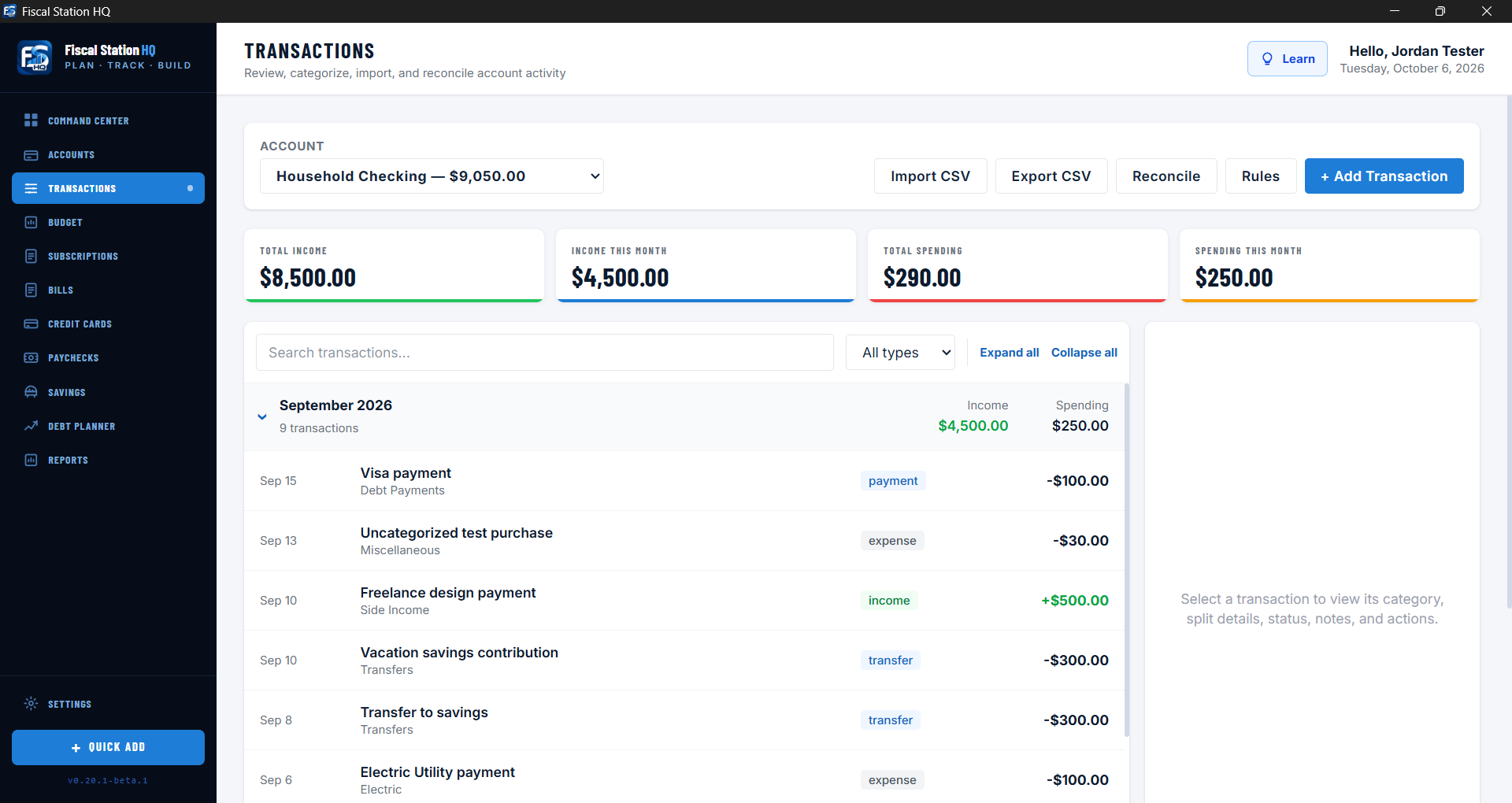
Monthly transaction groups
Transactions are grouped by month. Expand any month you need, keep multiple months open for comparison, or collapse them to reduce visual clutter.
CSV imports
- Prepare a CSV export from your financial institution and review it before importing.
- Choose the appropriate account and map supported fields when prompted.
- Review the import summary for added, skipped, or problematic rows.
- Open import history to inspect a batch or undo that batch when appropriate.
Imported transactions are identified separately from manually entered activity. Review imported descriptions and categories rather than assuming the source file is correct.
Transaction rules
Create rules for recognizable, repeated descriptions—such as roundups, transfers, fuel stations, or common merchants. Preview the matches before applying a rule broadly, then confirm the affected transactions.
SECTION 05Budget categories and subcategories
Create a spending plan that matches the level of detail you actually need.
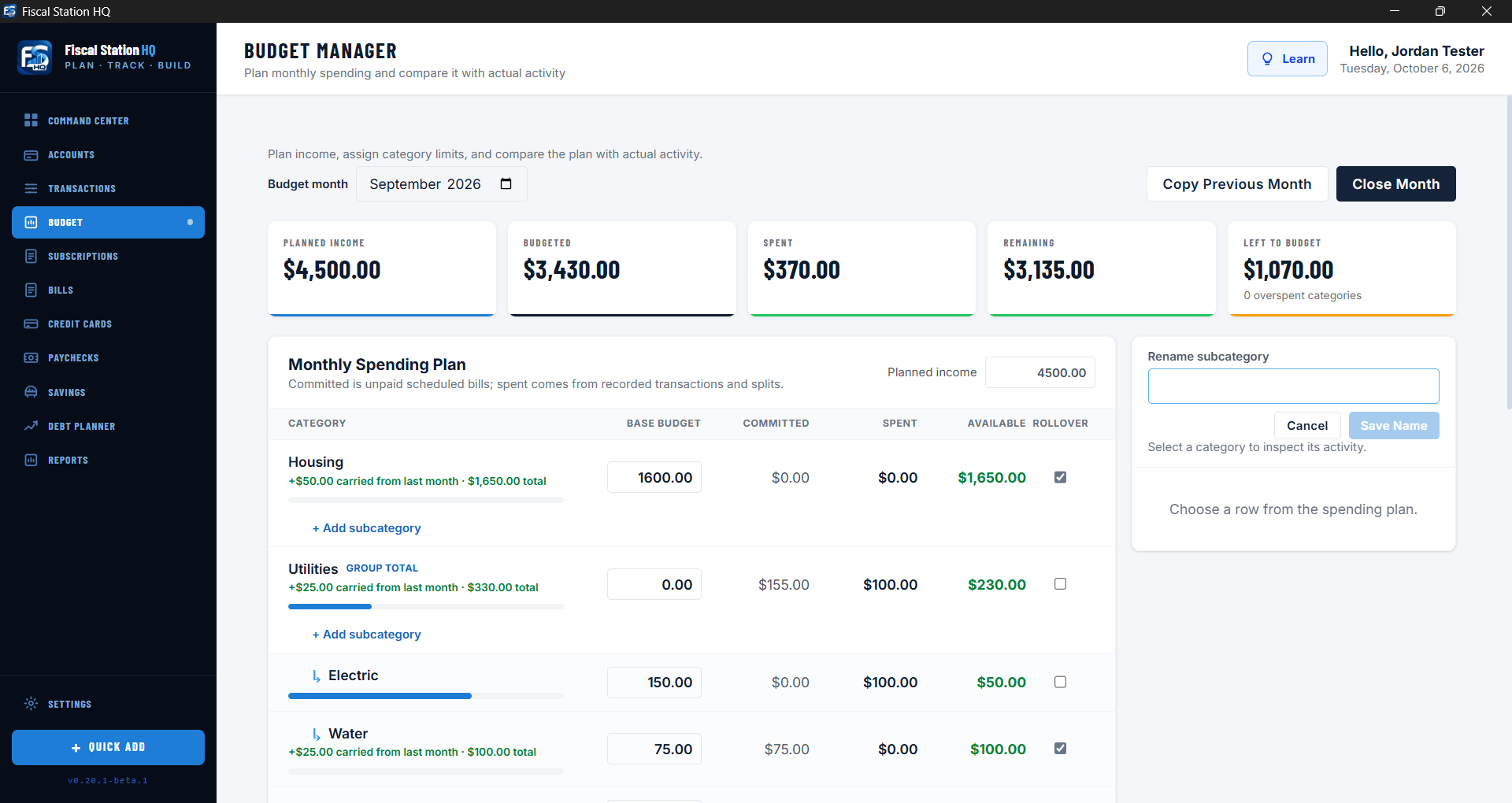
Use main categories for broad areas of spending and optional subcategories for useful detail. For example, Utilities can contain Electric, Water, and Gas.
- Create and rename categories according to your household’s needs.
- Add subcategories only where added detail improves control or understanding.
- Assign planned amounts and compare them with recorded activity.
- Review category totals as well as the underlying transactions.
- Close or preserve completed budget periods according to the available workflow.
SECTION 06Bills and subscriptions
Track recurring commitments, variable obligations, trials, and renewals.
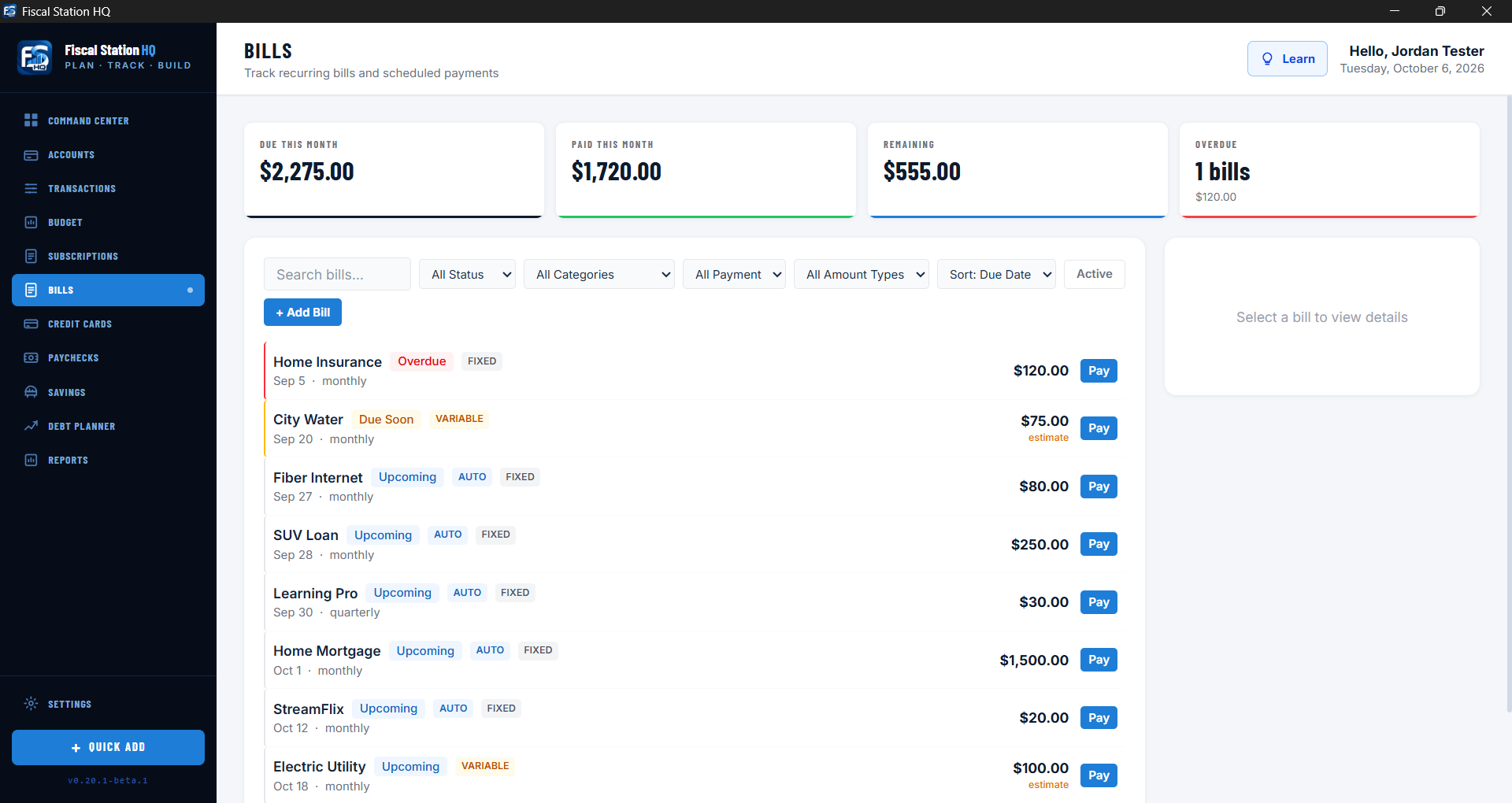
Bills
Record the name, expected amount, due date, frequency, and related account when applicable. Mark whether a bill is fixed or variable so estimates can be interpreted correctly.
Subscriptions
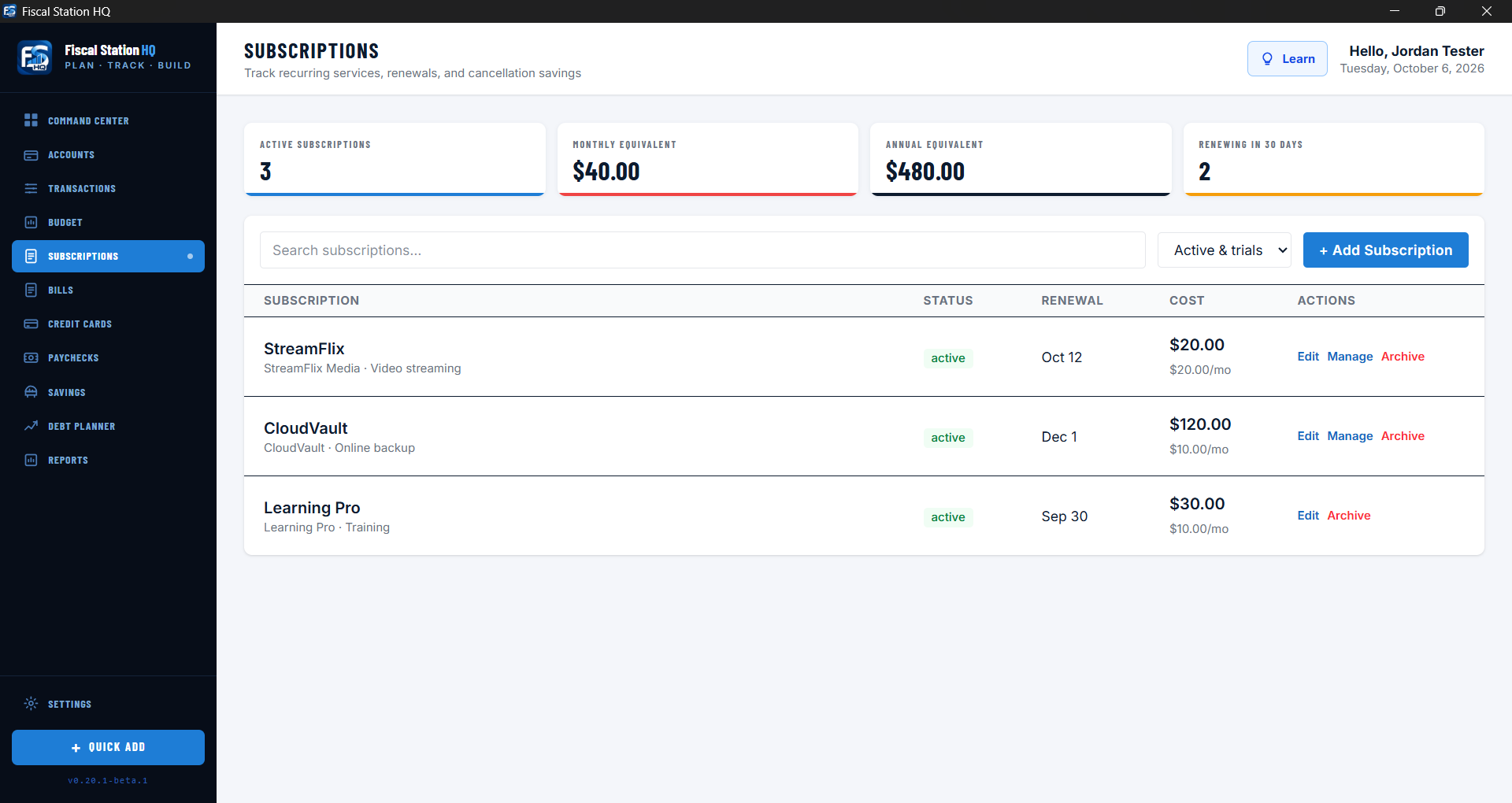
Track recurring services, renewal dates, trial periods, and expected costs. Review trials before their end dates and confirm whether a service actually renewed before relying on its status.
SECTION 07Paycheck planning
Assign expected income intentionally before it arrives.
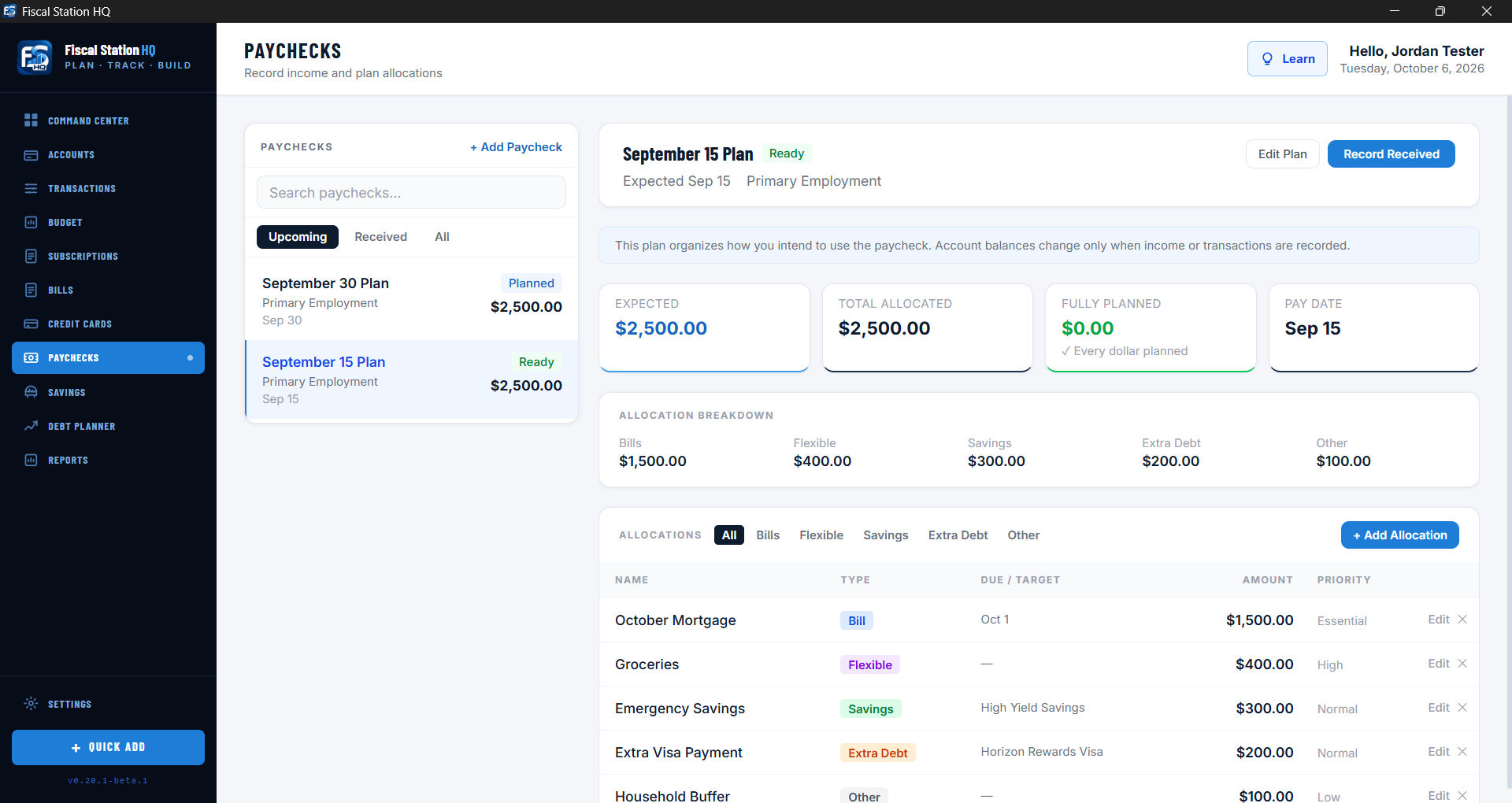
- Create the expected paycheck with its date and estimated take-home amount.
- Allocate amounts toward bills, flexible spending, savings, and debt priorities.
- Review the remaining unallocated amount.
- Correct any over-allocation warning before treating the plan as complete.
- Update the estimate when the actual paycheck differs.
Paycheck planning assigns intent; it does not itself move money between real accounts.
SECTION 08Savings goals
Give portions of your savings balance a clear purpose.
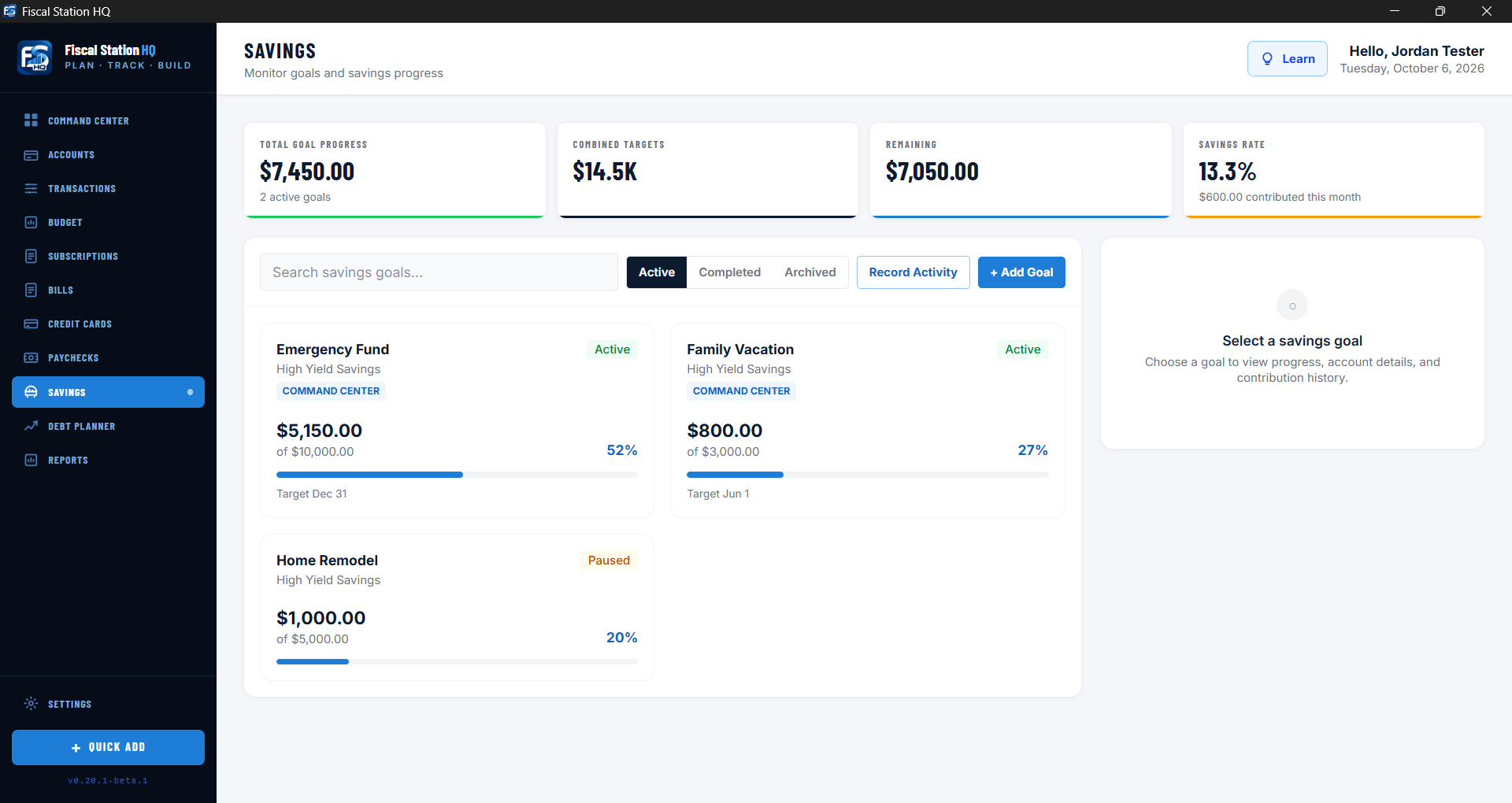
Create goals with meaningful names, target amounts, and target dates where useful. Record contributions and withdrawals so displayed progress continues to match reality.
When applying an existing savings balance to a goal, choose the specific amount you want to designate. You do not need to assign the entire account balance to a single goal.
SECTION 09Credit cards and debt planning
Understand utilization, estimate missing APRs, and compare payoff strategies.
Credit cards
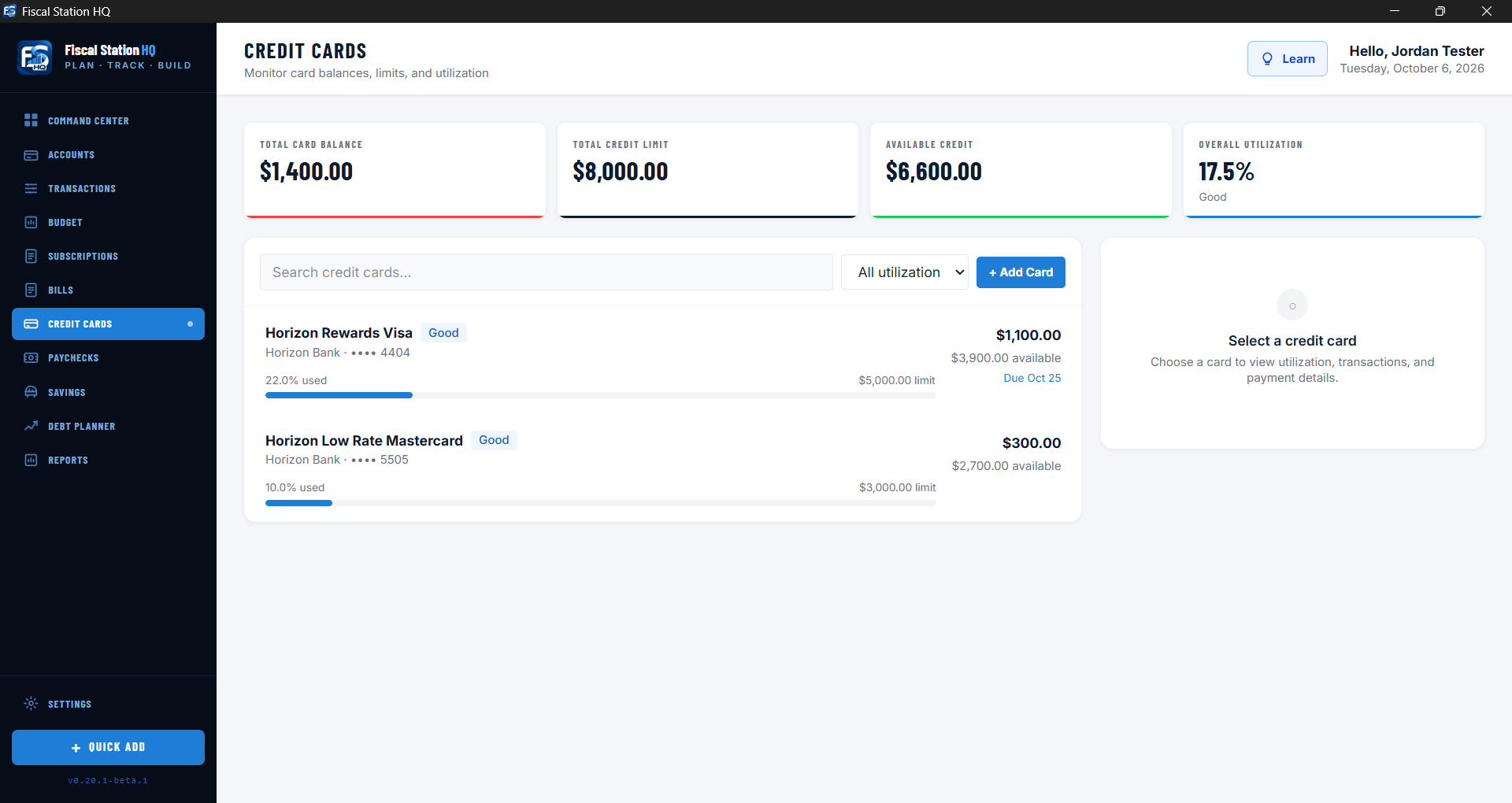
Maintain current balances, limits, minimum payments, and APRs when known. If an APR is missing, use the statement APR estimator with the requested statement figures. Treat the result as an estimate and replace it when the issuer provides the actual APR.
Debt strategies
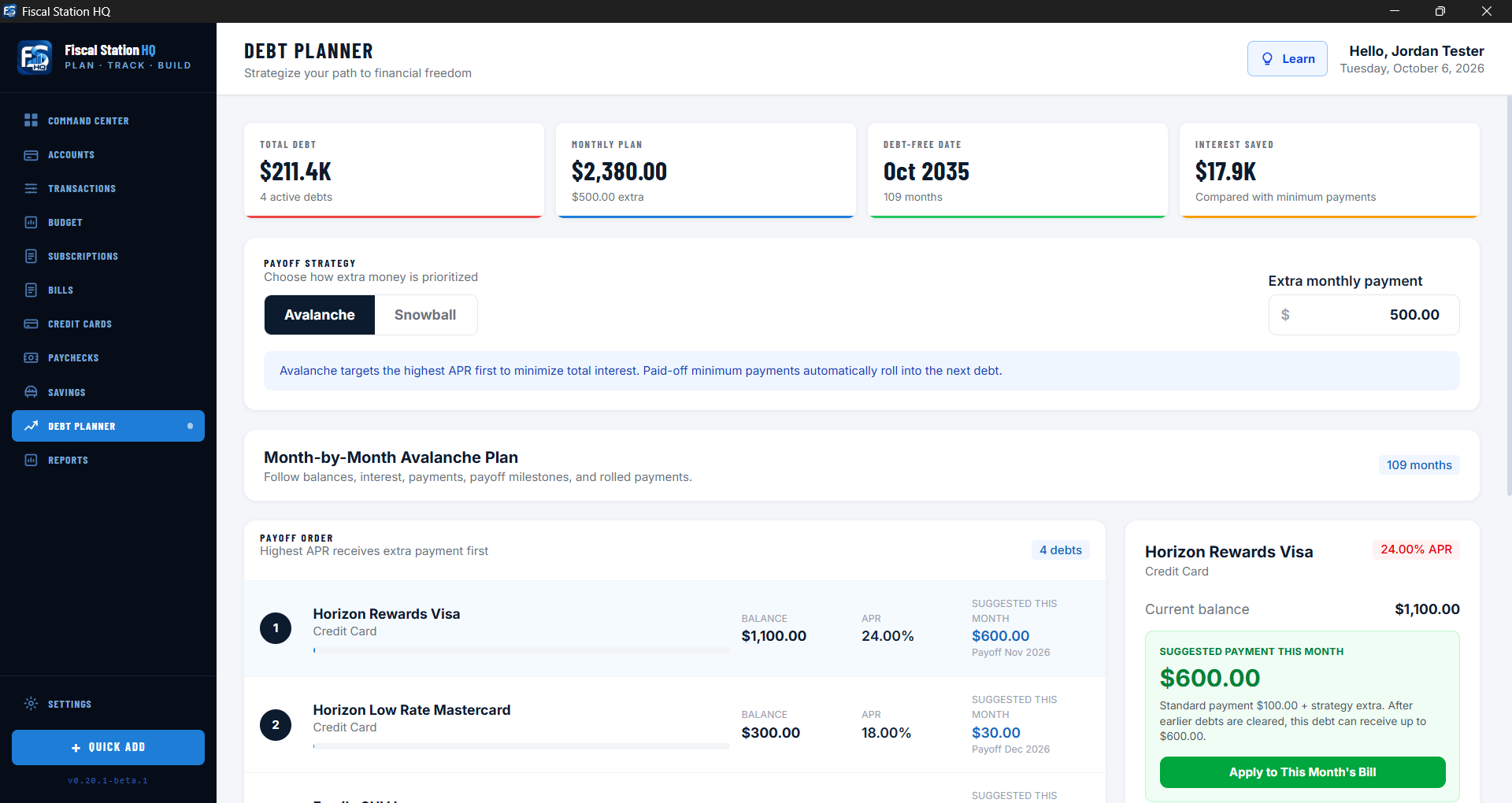
- Snowball: generally prioritizes smaller balances to create earlier completed accounts.
- Avalanche: generally prioritizes higher interest rates to reduce estimated interest cost.
- Extra payment: applies additional planned money according to the selected strategy and assumptions.
Review the month-by-month projection to see balances decline and payments roll toward remaining debts. Projections change when balances, APRs, minimums, or extra-payment assumptions change.
SECTION 10Reports and reconciliation
Turn recorded activity into context and confirm records against statements.
Reports
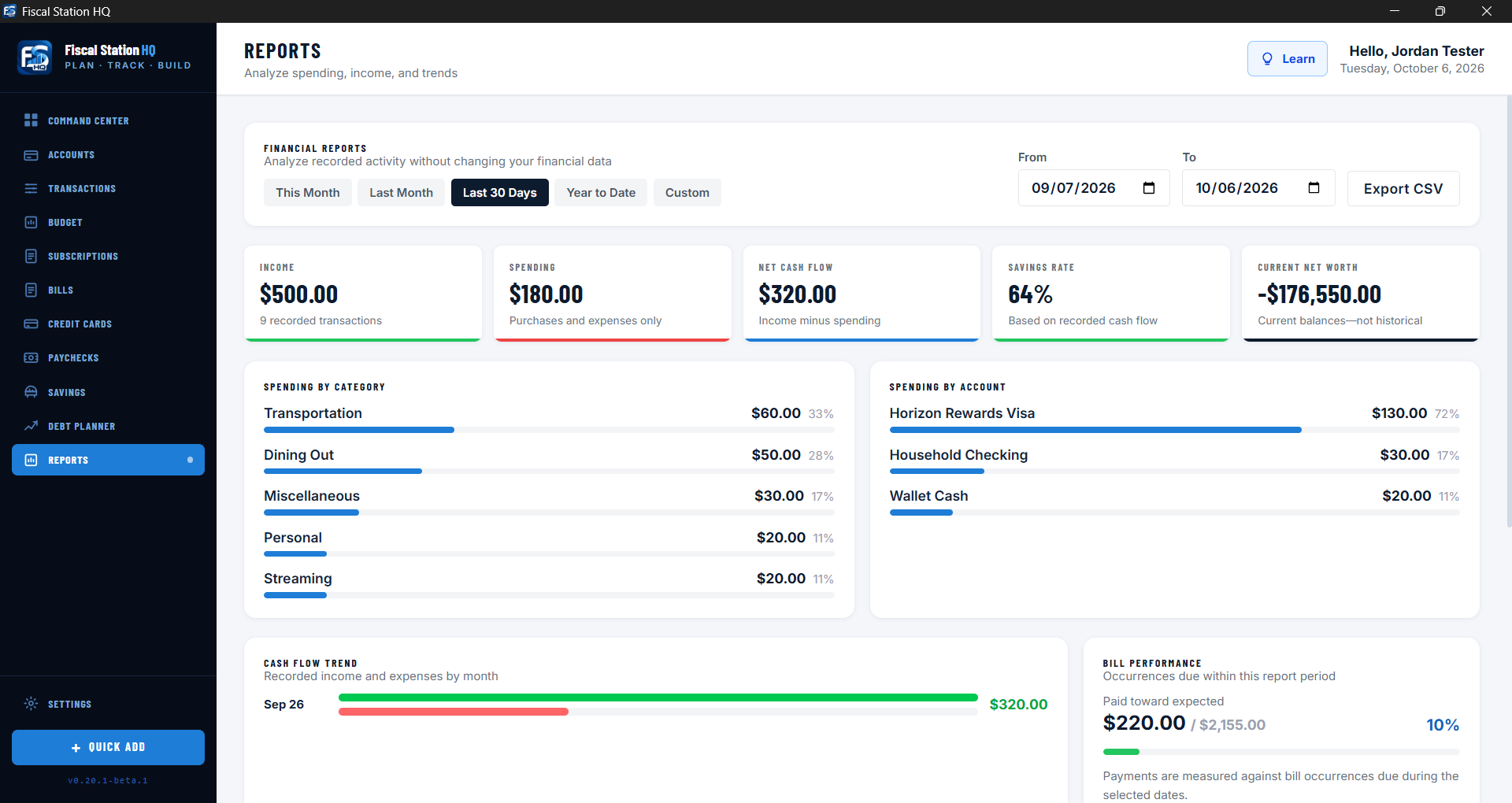
Use reports to review patterns and summaries across the information already recorded in Fiscal Station HQ. Results depend on complete, correctly dated, and consistently categorized activity.
Reconciliation
- Select the account and statement period.
- Compare Fiscal Station HQ transactions with the authoritative statement.
- Resolve missing, duplicated, or incorrect activity.
- Complete reconciliation only when the applicable records agree.
Completed items display a reconciled status and may be protected from casual editing. If a correction is necessary, understand the effect before changing reconciled history.
SECTION 11Backup, restore, and optional sync
Protect local records and understand the difference between backups and device synchronization.
Manual backups
Use the backup tools in Settings to create an independent copy of supported Fiscal Station HQ data. Store backups somewhere protected from loss of the original computer and create a new backup before major imports, resets, updates, or device changes.
Restore
Restoring replaces or changes the application’s working data according to the displayed workflow. Confirm that you selected the intended backup and preserve the current state before restoring whenever possible.
Optional cloud-folder sync
If enabled, Fiscal Station HQ can use a user-selected OneDrive or iCloud Drive folder to exchange supported application state between personally controlled devices. Follow the status and last-updated information shown in Settings.
- Allow one device to finish syncing before opening and changing data on another.
- Do not treat synchronization as your only backup.
- Keep manual backups separate from the synchronization folder.
- Confirm both devices use compatible Fiscal Station HQ versions.
SECTION 12Licensing and application updates
Manage activation and obtain eligible updated installers.
License activation
Enter the license key supplied through Lemon Squeezy. The planned personal license permits activation on up to two devices. Internet access is required for initial activation and periodic validation.
Do not publish, email unnecessarily, or share your license key with people outside your licensed use.
Updates
Eligible updated installers will be provided through the order-access link associated with the purchase. Before applying an update:
- Create a current manual backup.
- Close Fiscal Station HQ on all devices.
- Download the correct Windows or macOS installer from the authorized access page.
- Run the installer over the existing supported installation.
- Open the application and confirm the displayed version and essential data.
SECTION 13Troubleshooting and safe support
Resolve common issues and provide useful information without exposing financial data.
Before contacting support
- Restart Fiscal Station HQ and confirm whether the problem repeats.
- Record the exact error message and the steps immediately before it appeared.
- Confirm your operating system and Fiscal Station HQ version.
- Check whether the issue affects one record or the entire workspace.
- Create a backup before attempting resets, restores, or repeated imports.
Protect sensitive information
Never send passwords, full account numbers, complete financial backups, unredacted statements, or license keys through ordinary support email. Replace personal figures and identifying details in screenshots whenever possible.
For help, visit the Support page or email support@fiscalstationhq.com.
Still need help?
Tell us your operating system, Fiscal Station HQ version, what you expected to happen, and what happened instead. Please remove sensitive financial information before sending screenshots.
Email Fiscal Station HQ support